 AutoOrganize
AutoOrganize
File documents your way, on iPhone and iPad.
Every document in the right iCloud Drive folder in two taps. Suggestions learned from your own filing, with no account and nothing leaving your device.
How it works
Three steps, and the file is where it belongs
Pick a folder and your categories
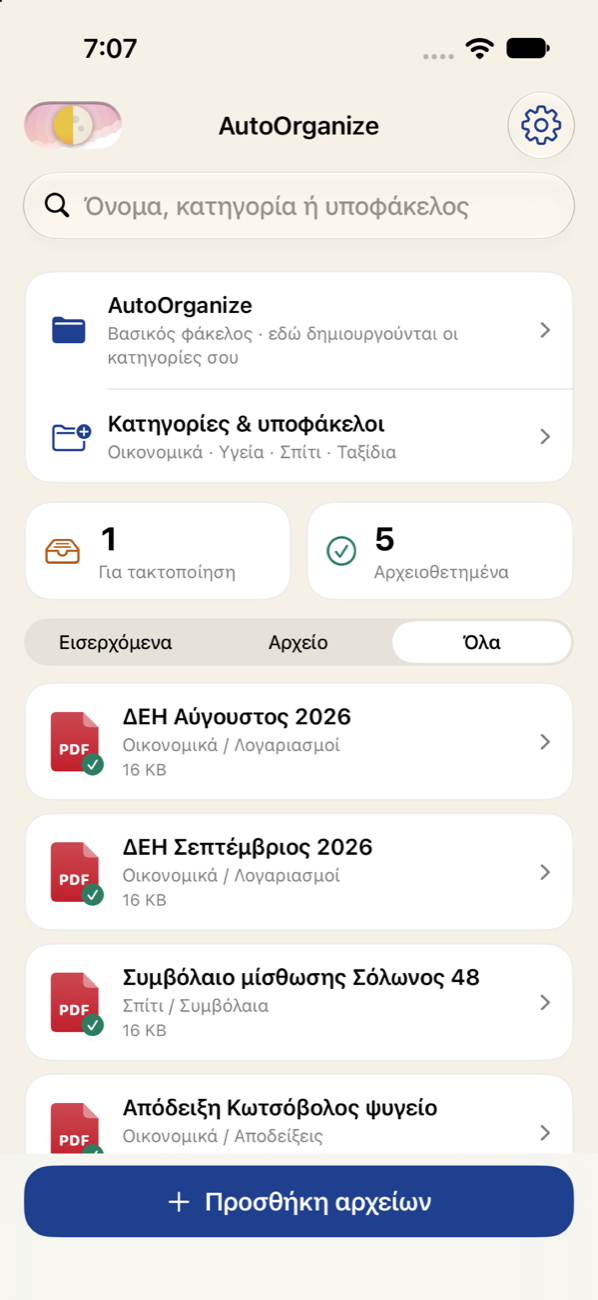
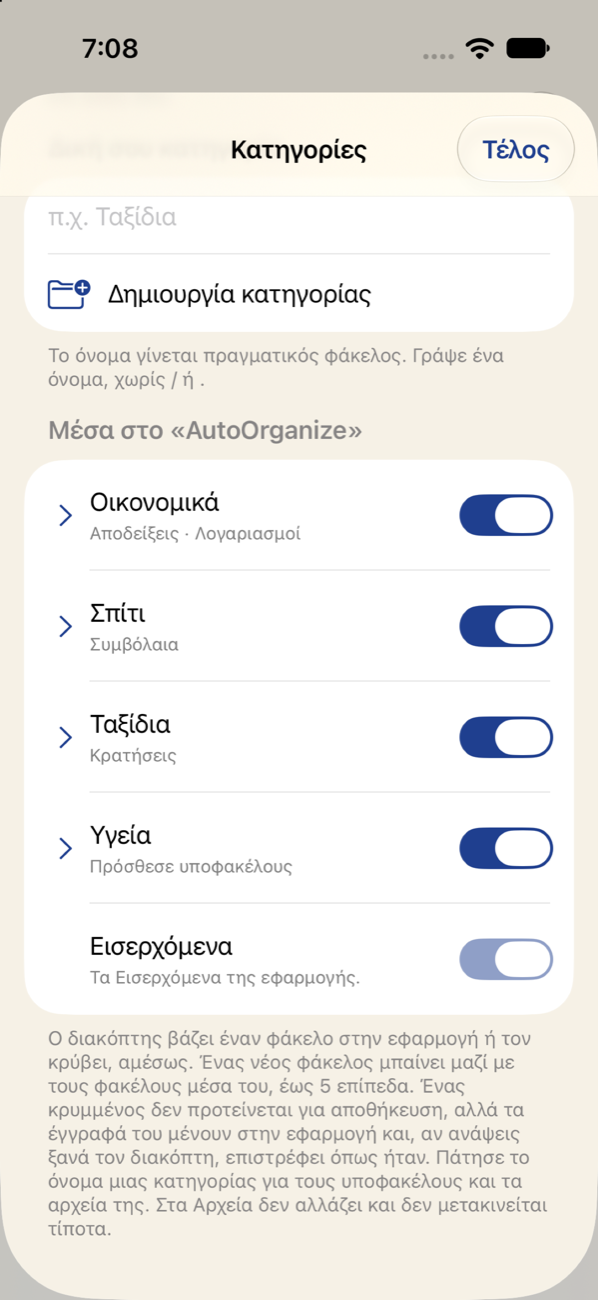
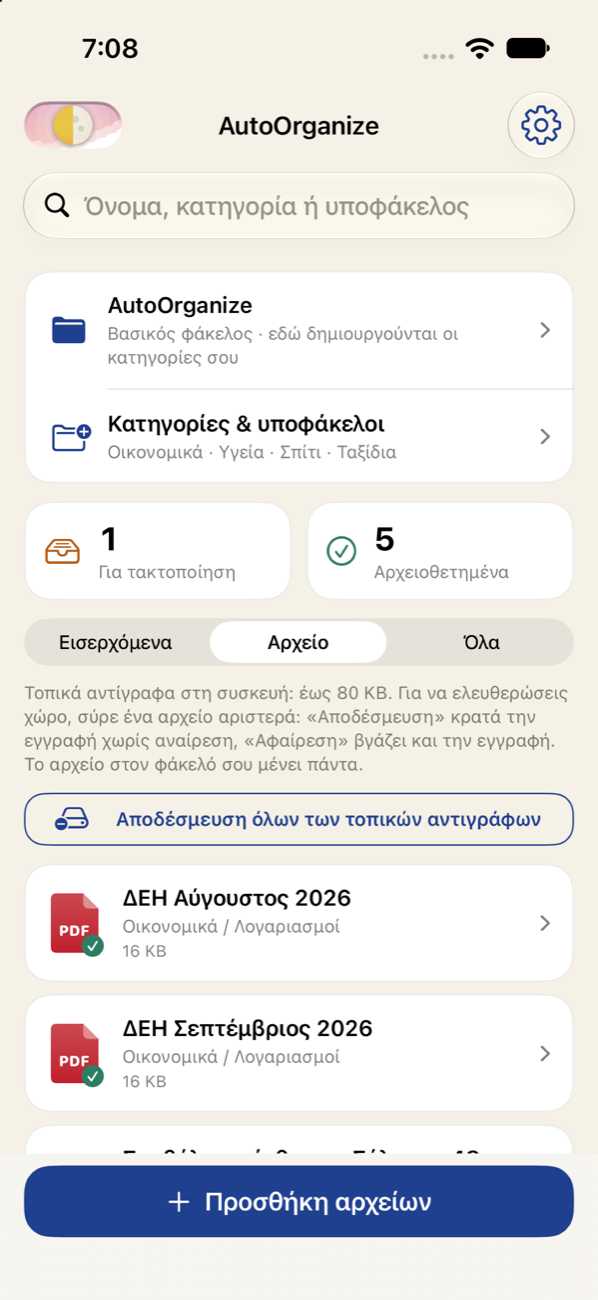
A base folder in iCloud Drive or On My iPhone, and your categories with subfolders up to five levels deep. Folders you already keep come in as they are.
Add or share a file
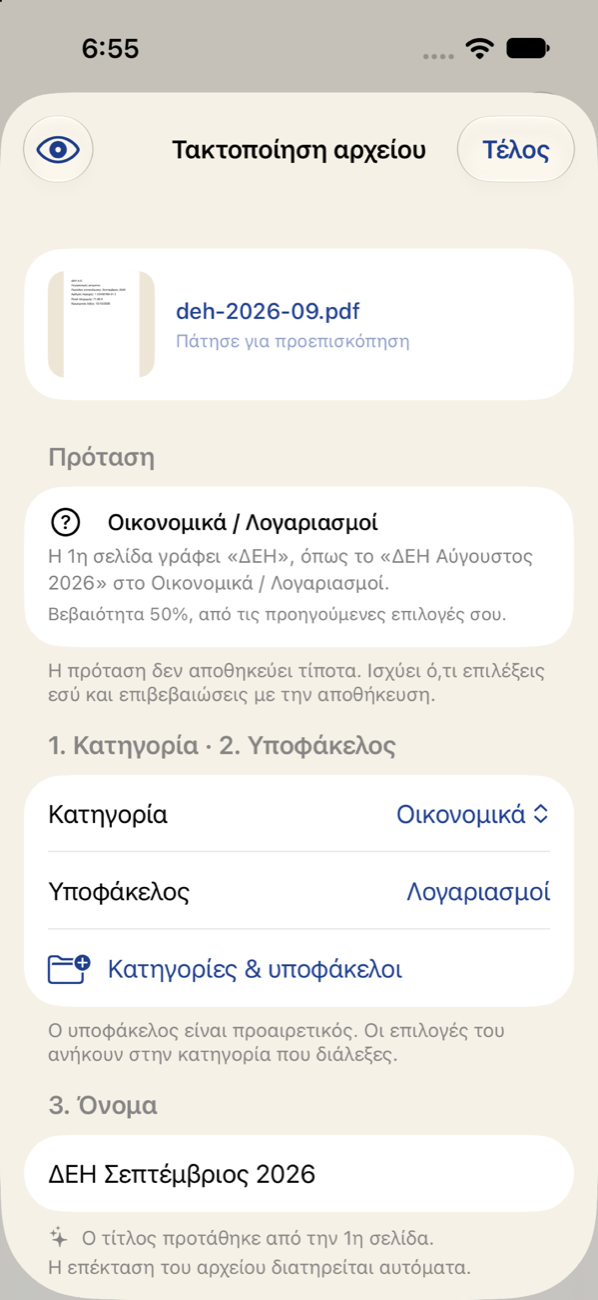
From Files, Mail or any app. The app suggests a category, a subfolder and a name, and explains why.
Confirm
Or change anything you like. The file goes to its folder in Files, with a readable name and the right extension.
How it suggests
It learns from your own filing
From your history
Same issuer, same kind, same period: the new file gets the folder and title of the last similar one.
From the first page
Read on the device: PDF, Word, Excel, PowerPoint, OpenDocument, RTF, DXF and scans.
From Apple's model
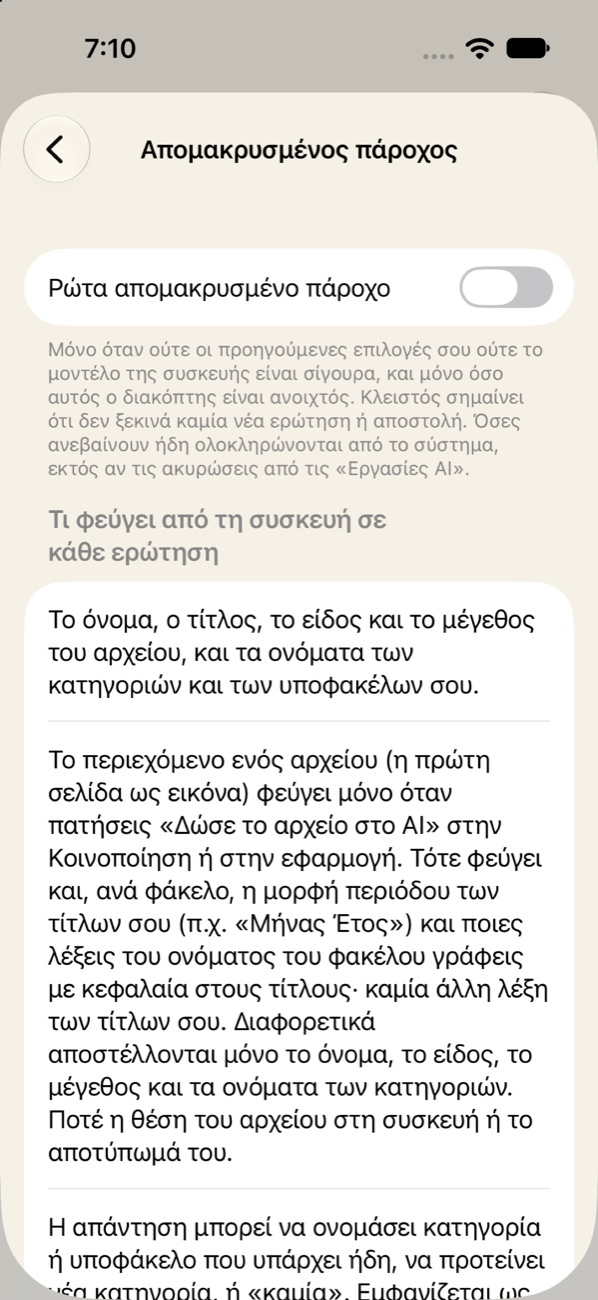
On the device, where available, only when the rules are not sure.
Optionally from AI
A provider of your choice (Anthropic, OpenAI, Google) with your own key. Content is sent only when you tap to send it.
Your files stay yours
In your folders, not in a store of ours
In Files
See them in Files, on your Mac and in every app. No second copy on someone else's server.
Undo
Undo any filing for 7 days from the local copy.
Duplicates
Recognised by content, not by name.
Recovery
Files deleted or moved in Files are detected and restored with one tap.
No account, no tracking
No sign-up, no subscription, no analytics. The catalog, thumbnails and page words stay on your device. The developer runs no server and receives nothing. Read the privacy policy.
Designed with Greek documents in mind
Bills, receipts, contracts, talks and notes, understanding Greek and Greeklish folder names. Greek interface, with English available from the iPhone's Settings.
Inside the app
A quick look
Support
Questions, problems or ideas?
Write to support@autoorganize.app. It helps to include the app version (Settings → How it works) and, for filing issues, the file kind and the folder. Frequently asked questions are on the support page.